
In today’s fast-paced world, managing tasks, projects, and information across different apps can quickly become overwhelming. This is where Notion comes in — an all-in-one productivity platform that allows you to take notes, manage projects, build databases, and collaborate seamlessly in a single workspace.
Whether you’re a student, freelancer, or part of a team, this guide will walk you through how to get started with Notion in 2025 and make the most out of its powerful features.
What Is Notion?
Notion is a flexible productivity and organization tool that combines:
- Note-taking
- Task and project management
- Databases and wikis
- Collaboration tools
Unlike traditional apps that focus on one function, Notion is modular, meaning you can design your workspace to fit your exact workflow.
Step 1: Sign Up and Set Up Your Workspace
- Visit Notion’s website or download the app for desktop or mobile.
- Sign up with your email or Google account.
- Create your first workspace — this will be your central hub.
- If you’re using Notion for personal productivity, keep it simple with pages for notes and tasks.
- For teams, you can invite members directly to collaborate in real time.
Step 2: Understand the Building Blocks
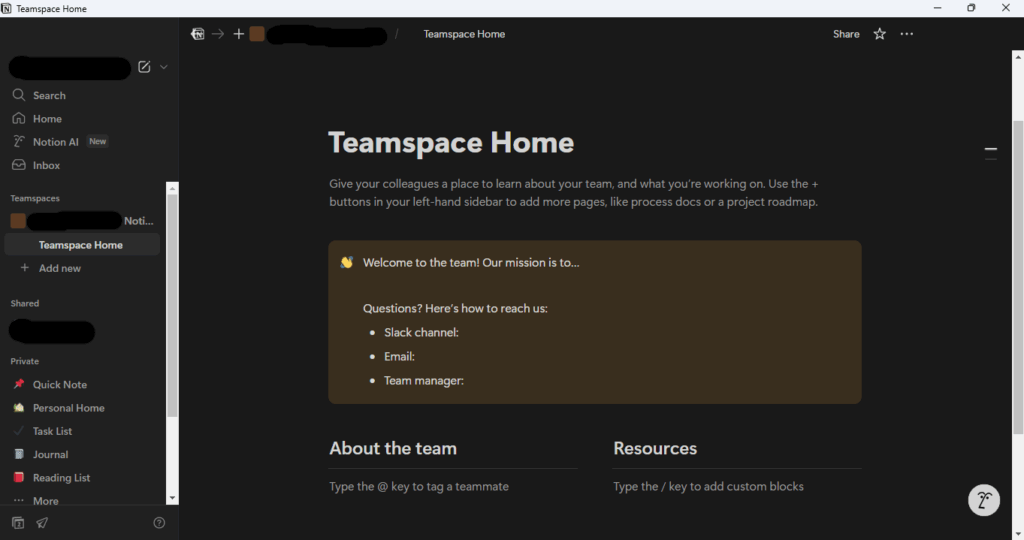
Notion is built around simple but powerful elements:
- Pages: Blank canvases where you can add content.
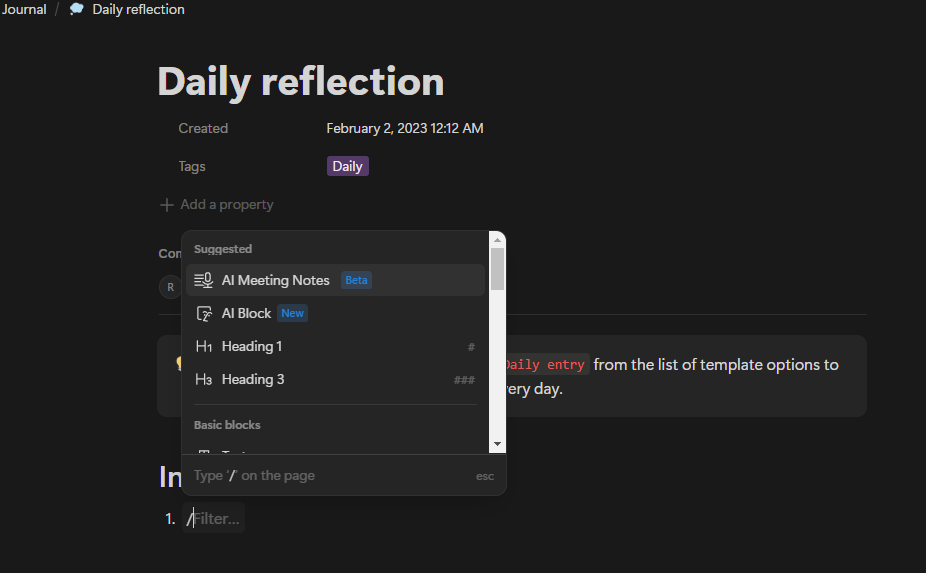
- Blocks: The core unit in Notion (text, checklist, images, embeds, etc.).
- Databases: Structured pages that let you create tables, boards, calendars, and lists.
- Templates: Pre-designed pages to speed up setup.
Think of each page as a Lego board where you can add blocks to build what you need.
Step 3: Start With the Basics
Here are three simple ways to use Notion right away:
- To-do lists – Create a page and add checkboxes for daily tasks.
- Notes and journals – Use text blocks to write meeting notes, reflections, or study notes.
- Calendar planning – Insert a calendar block to track deadlines or events.
Step 4: Explore Templates
Notion has an ever-growing library of free and premium templates. Beginners should try:
- Personal Planner – For daily, weekly, and monthly task organization.
- Project Tracker – To monitor progress on assignments or team projects.
- Reading List / Knowledge Hub – For saving books, articles, and research.
You can access templates directly from Notion’s sidebar or import custom ones from creators online.
Step 5: Customize and Grow
Once you’re comfortable, customize your workspace to fit your needs:
- Add tags and filters in databases for easy navigation.
- Use relations and rollups to connect multiple databases (e.g., link tasks to projects).
- Integrate with tools like Google Drive, Slack, or Zapier for automation.
Tips for Staying Consistent
- Start simple; don’t overwhelm yourself with too many pages.
- Use a daily dashboard to keep tasks, notes, and goals in one view.
- Review your setup weekly to declutter and update.
Why Notion Stands Out in 2025
With AI enhancements, improved mobile performance, and growing community support, Notion has become more than a note-taking tool. It’s now a digital operating system that adapts to individuals, startups, and even large organizations.

Other Articles